
Commerce
Add-on products
Add-ons let customers finish their box — a gift box, a ribbon, a sticker, a gift note. They appear as grouped choices inside the coffret builder; paid ones are ordinary Shopify products that ride along in the cart as their own lines.
How it works on the storefront#
Add-ons live inside the coffret builder, not as separate products a shopper browses to. Here’s the flow a customer sees:
- Grouped, single-select choices. Options are organised into groups — Box, Ribbon, Sticker, Gift note… Each group is one row, and the customer picks one option per group (choosing another swaps the selection).
- They unlock after the first piece. The add-on area is locked (dimmed, with a hint) until at least one piece is placed in the box — so shoppers compose first, then finish with the wrapping.
- Each option shows a thumbnail or colour swatch and its name. Paid options carry a “+ price” badge, and selecting one adds that amount to the box’s live total immediately.
- Optional vs required. A group can be optional (skippable — tapping the selected option again clears it) or have its first option preselected by default.
What lands in the order#
When the box is added to the cart, the choices flow through to the order so your atelier knows exactly what to make and wrap:
- The box records every choice as line-item properties — the piece composition plus each add-on group and the option chosen.
- Every paid add-on is also added as its own cart line (tagged
Add-on: Group — Option) so it is billed and fulfilled correctly. - Free options are recorded on the box line only — no extra line, no charge.
Le Grand Coffret  ×1
  Pieces:  Palet d'Or, Cœur Framboise, Caramel Beurre Salé, …
  Box:     Walnut Gift Box
  Ribbon:  Silk — Champagne
  Sticker: Wax seal            (free option — property only)

Walnut Gift Box  ×1     ← paid add-on, its own line   (Add-on: Box — Walnut Gift Box)
Silk Ribbon ×1 ← paid add-on, its own line (Add-on: Ribbon — Silk — Champagne)Two pricing modes, same behaviour
Setting up the choices#
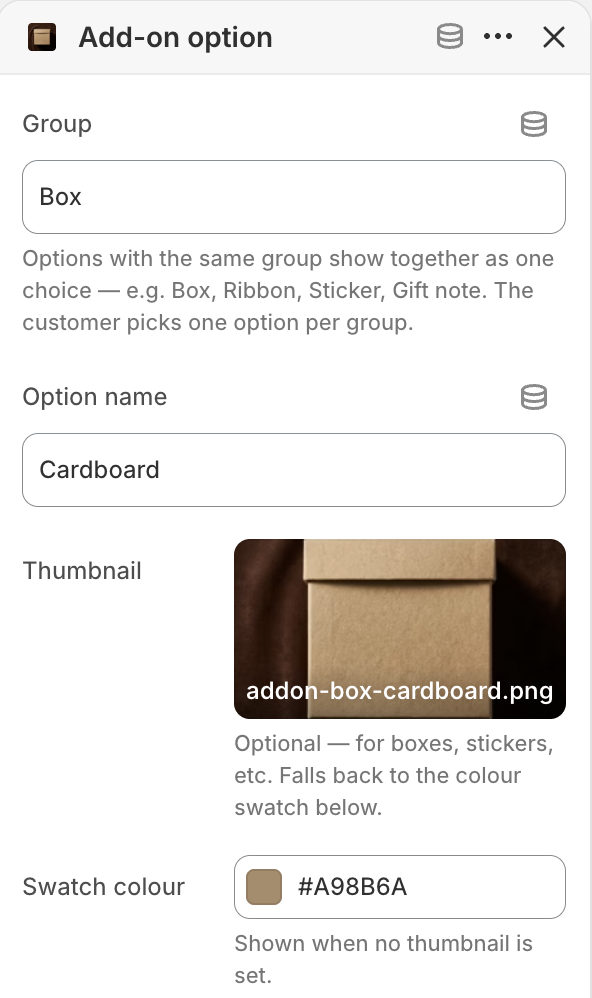
Each option is an Add-on option block on the coffret builder. Put options in the same Group to make them one single-select row; connect a product to charge for one, or leave it empty for a free choice.
- Group
- Options sharing a group (e.g. “Box”) render as one row — the customer picks one.
- Thumbnail
- Shown for the option; falls back to the connected product’s image, then the colour swatch.
- Paid option
- Connect a product — it gets a “+ price” badge and its own cart line.
- Free option
- Leave the product empty — recorded on the box, no charge.
- Optional
- Makes the group skippable (no default preselected).
Keeping paid add-ons out of the storefront#
A paid add-on must be a real, purchasable product — but it shouldn’t appear as a standalone item in collections, search or on its own product page. Set each add-on product up like this:
- 1
Create the product
Make a normal product (e.g. Silk Ribbon, $3) and give it an image — the builder uses it as the option thumbnail. Leave inventory untracked unless you need to cap it. - 2
Set status to Unlisted
Unlisted keeps it purchasable and published to the Online Store, but Shopify hides it from search, collections and the sitemap. - 3
Set the product type to “Add-on”
The theme treats the Add-on product type specially — it renders nothing in any grid, skips predictive search, and gives the product a non-buyable “not sold separately” page set tonoindex. - 4
Connect it in the builder
Add an Add-on option block, put it in a group, and connect the product.
Use both settings
- In the builder
- A grouped, single-select choice with a thumbnail and — if paid — a “+ price” badge.
- In the cart & order
- Choices recorded as box properties; each paid add-on is its own billed line.
- In collections & search
- Nothing — an add-on product never appears.
- At its product URL
- A “not sold separately” notice, excluded from search engines.